What you’ll need
Before you start
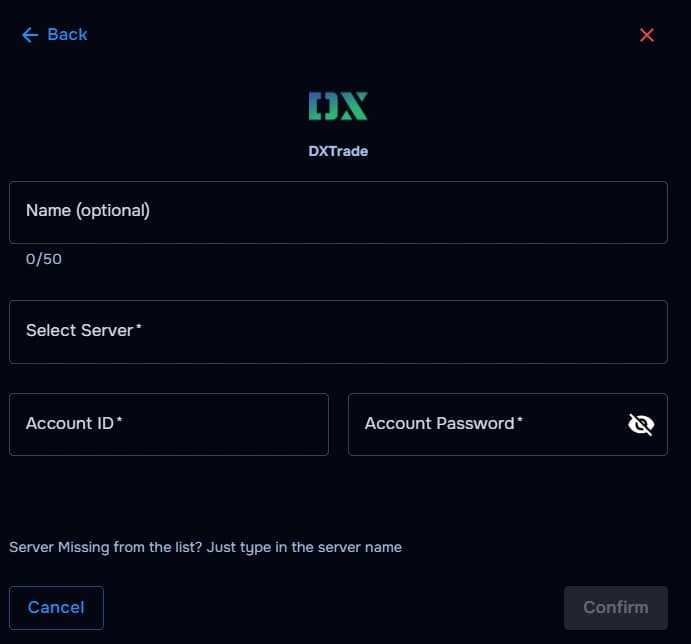
Account ID
The DXTrade login identifier issued by your broker or prop desk.
Password
The trading password tied to the DXTrade profile you want to sync.
Server selection
Pick the DXTrade server / gateway from the dropdown exactly as your broker lists it.
Optional: Name your account
Name your account in TraderWaves to easily identify it.
How the connection works
Overview
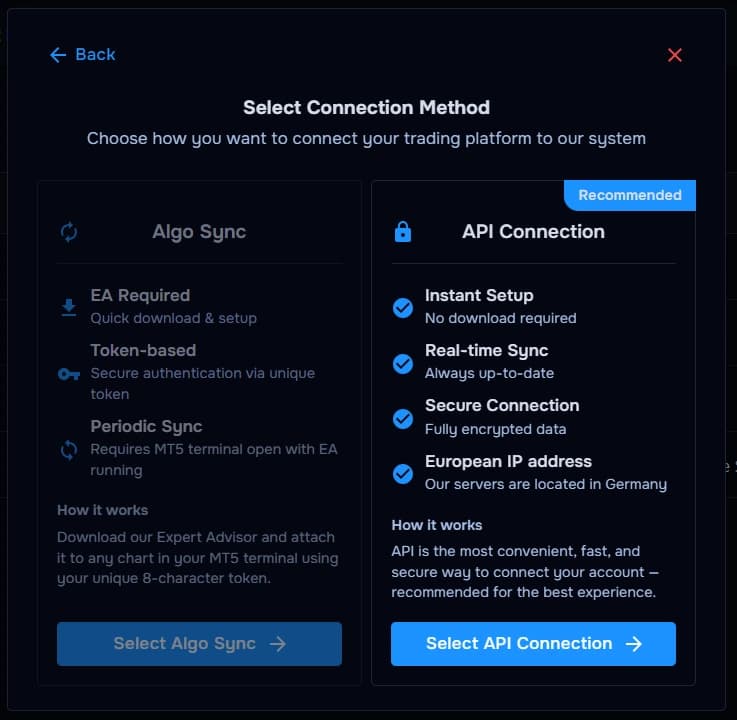
TraderWaves securely connects to your DXTrade trading account connection: credentials authenticate against your broker's DXTrade gateway so, your trades can automatically sync into your trading journal, analytics, and performance dashboard.
Step-by-step setup
Walkthrough
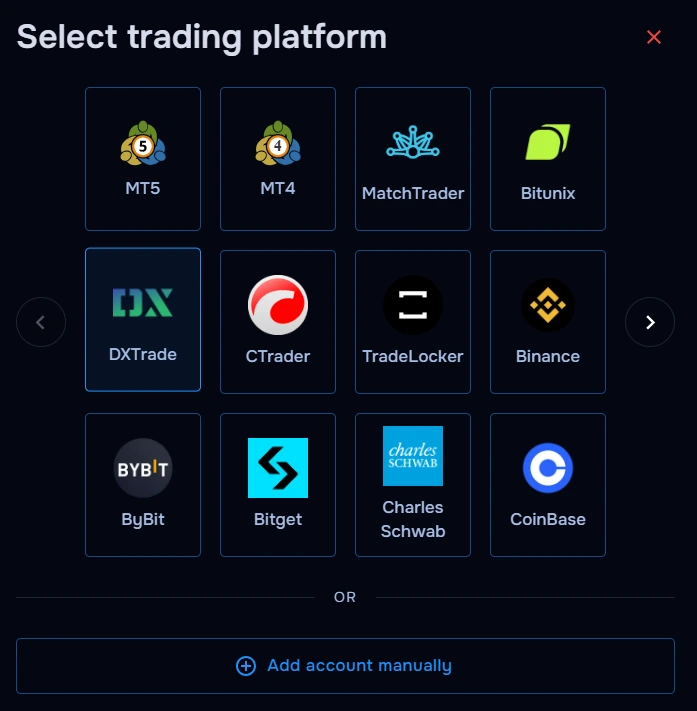
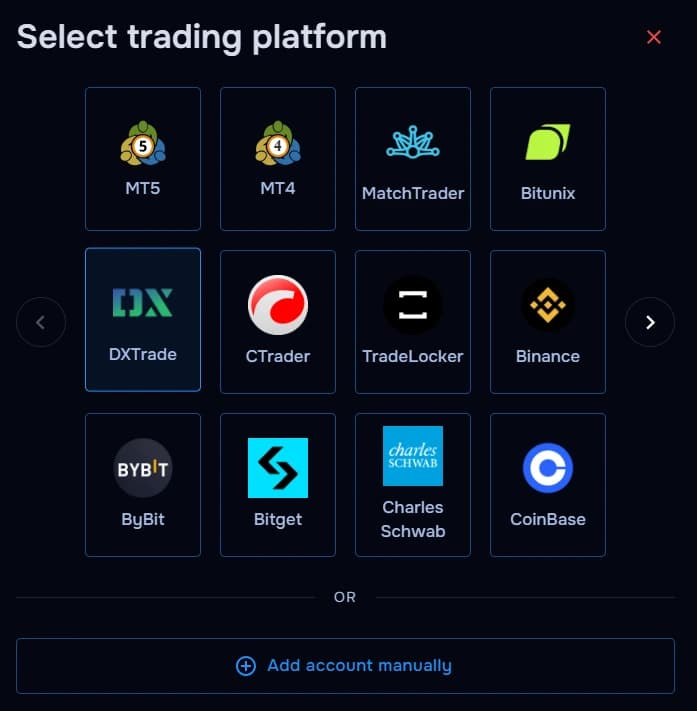
- Open TraderWaves and choose DXTrade.
- Select your broker server from then server list (often visible in your DXTrade terminal login).
- Enter your DXTrade account ID and password.
- Optionally name your account in TraderWaves to easily identify it.
- Confirm and wait for connection validation plus initial sync.
What happens after connecting
After sync
DXTrade trades automatically sync into TraderWaves for journaling, analytics, position tracking, and performance review.
Security and permissions
Trust & access
Opt for investor credentials where supported for additional account security.
Prefer manual trade tracking?
TraderWaves also supports manual trade journaling when you want full control over how trades are logged.
Troubleshooting
Common issues
Server list doesn't contain your broker server
Likely cause: Mispelled server name or missing server name
Suggested fix: Double check the server name and try again. If the server name is not in the list, simply type the missing server name and it will be added to the server list.
Invalid login
Likely cause: Typo in ID/password or wrong server pairing.
Suggested fix: Copy credentials from broker portal; verify server string.
Trades not syncing
Likely cause: Initial backlog or filtered scope.
Suggested fix: Wait for sync; review TraderWaves filters.
FAQs
Quick answers
Can I connect multiple DXTrade accounts to TraderWaves?
Yes. You can connect multiple DXTrade accounts separately and review each account inside TraderWaves.
Does TraderWaves support prop firm DXTrade accounts?
Yes. Many prop firm DXTrade accounts can be connected when the broker or platform provides supported DXTrade login access.
Can I manually journal DXTrade trades instead?
Yes. TraderWaves also supports manual trade journaling if you prefer not to connect your DXTrade account directly.
Is my DXTrade account information secure?
TraderWaves securely encrypts your login credentials and never shares them outside the platform.
What happens after connecting DXTrade?
Your DXTrade trades can sync into TraderWaves for journaling, analytics, position tracking, and performance review.