What you’ll need
Before you start
Tradovate credentials
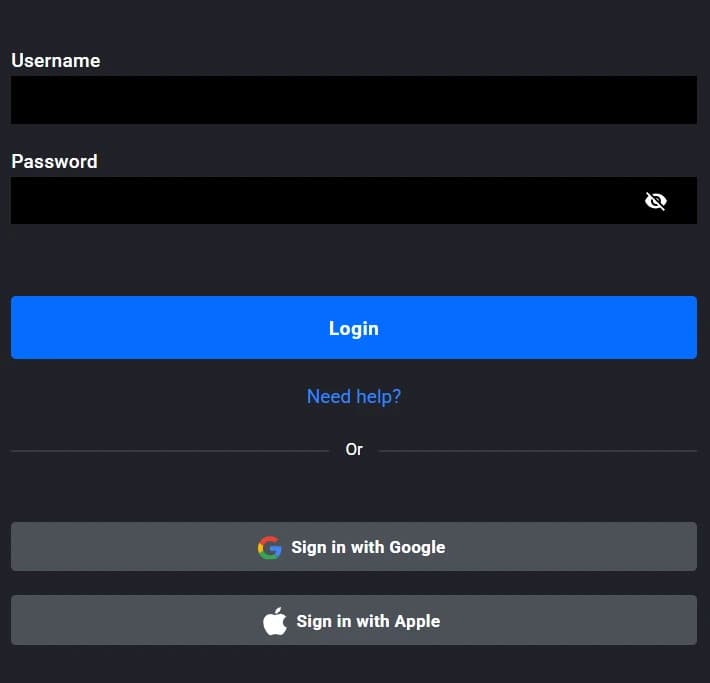
Either log in with your Tradovate login and password or via Google.
OAuth approval
Approve TraderWaves scopes — passwords stay on Tradovate-hosted pages.
How the connection works
Overview
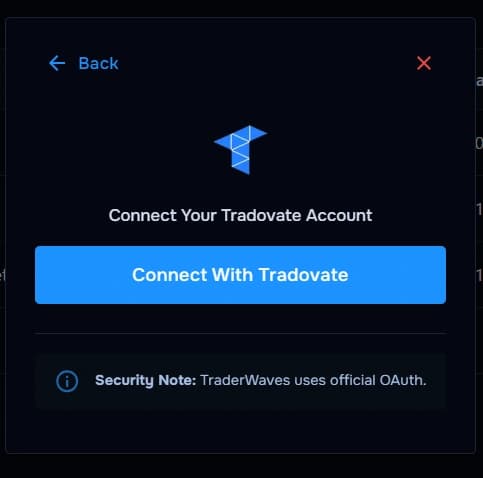
TraderWaves launches the Tradovate OAuth authorization flow. Once approved, secure access tokens allow eligible trade activity to sync into your TraderWaves journal and analytics without storing your Tradovate password.
Step-by-step setup
Walkthrough
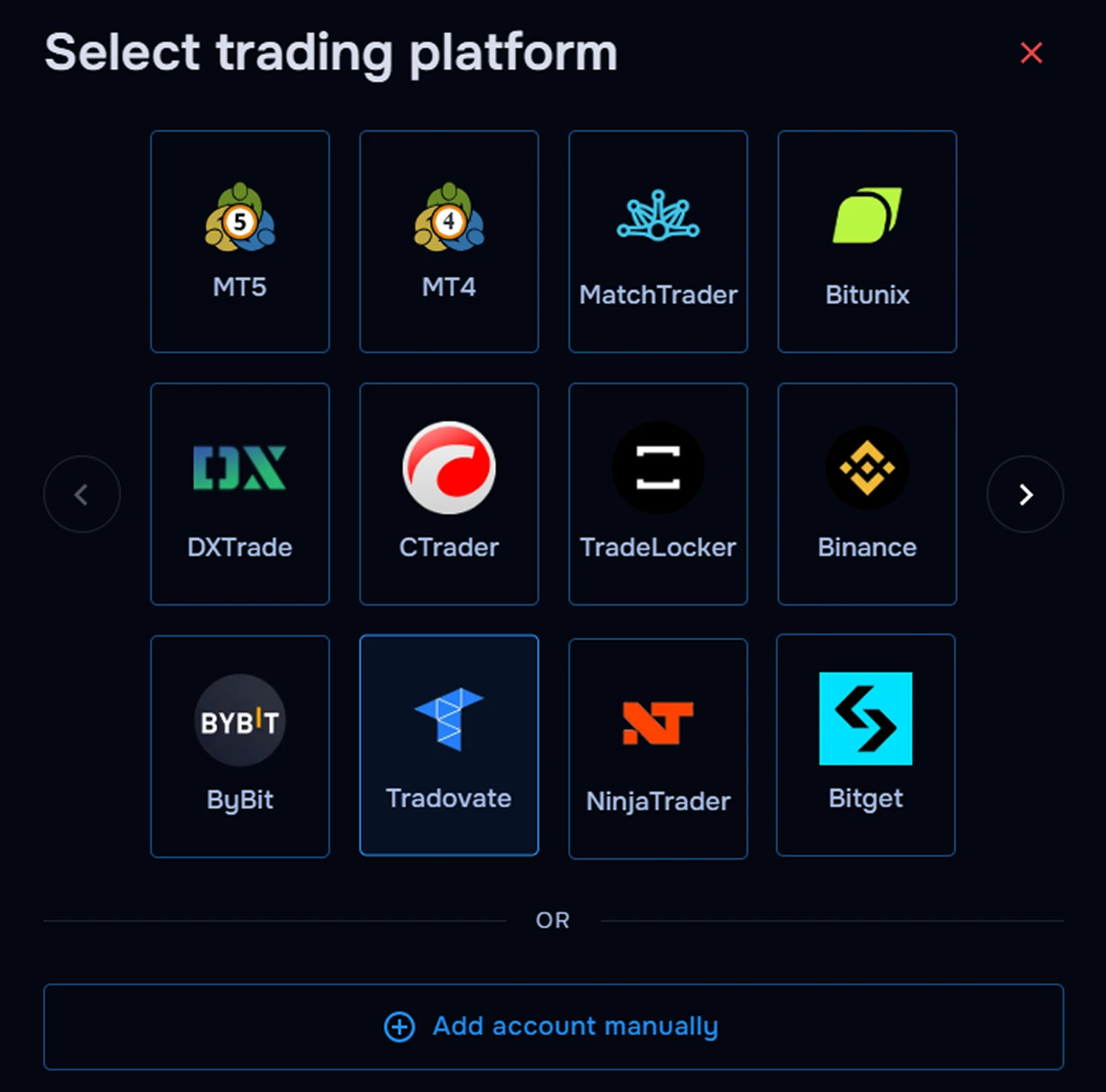
- Select Tradovate inside TraderWaves.
- Click Connect with Tradovate to open the official authorization screen.
- Log in through Tradovate OAuth.
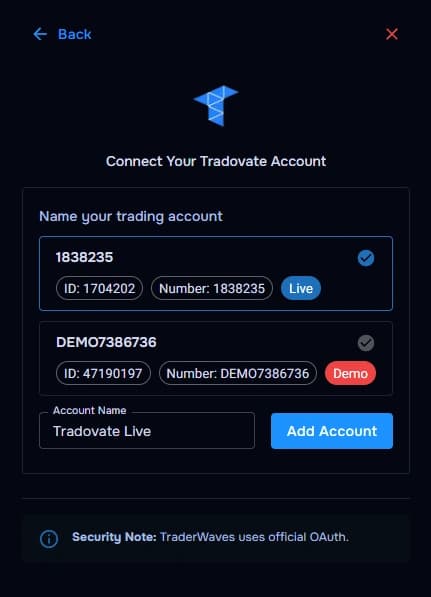
- Return to TraderWaves after the redirect succeeds and confirm in TraderWaves the account you wanted to connect.
- Wait for the initial sync to complete.
What happens after connecting
After sync
Once connected, your Tradovate trades can automatically sync into TraderWaves so you can review performance, analyse trade history, add journal notes, and compare activity alongside your other accounts.
Security and permissions
Trust & access
TraderWaves uses the official OAuth authorization flow for this connection. Your login password is not entered directly into TraderWaves, and access is managed through secure authorization tokens.
Prefer manual trade tracking?
TraderWaves also supports manual trade journaling when you want full control over how trades are logged.
Troubleshooting
Common issues
Tradovate authorization window did not open
Likely cause: Browser popup settings or extensions may have blocked the OAuth window.
Suggested fix: Allow popups for TraderWaves and try again.
Authorization was cancelled
Likely cause: The login or approval flow was closed before completion.
Suggested fix: Restart the connection from TraderWaves and complete the authorization flow.
Wrong Tradovate account connected
Likely cause: A different account may have been selected during authorization.
Suggested fix: Disconnect the integration and reconnect using the correct Tradovate login.
Tradovate trades are not syncing
Likely cause: Initial sync may still be processing or the account may not have eligible trade history.
Suggested fix: Wait a few moments, then check the connected account and date filters inside TraderWaves.
Redirect did not return to TraderWaves
Likely cause: Browser privacy settings, extensions, or blockers may have interrupted the redirect.
Suggested fix: Try again in a clean browser window or temporarily pause strict blockers.
FAQs
Quick answers
How does the Tradovate connection work?
TraderWaves uses a secure OAuth authorization flow, meaning you log in through Tradovate directly and approve access without entering your password into TraderWaves.
Do I need API keys for Tradovate?
No. Tradovate uses OAuth authorization instead of API keys, making setup simpler for most traders.
Can I connect multiple Tradovate accounts?
Yes. You can connect supported Tradovate accounts separately and manage them inside TraderWaves.
Is the Tradovate connection secure?
Yes. TraderWaves uses secure authorization tokens and does not directly store your Tradovate login password.
Can I manually journal Tradovate trades instead?
Yes. TraderWaves also supports manual trade journaling if you prefer not to connect your Tradovate account directly.
What happens after connecting Tradovate?
Your Tradovate trades can sync into TraderWaves for journaling, analytics, performance tracking, and trade review.